
Working With Courses
Courses in Digital Academy Fortune are built on Tutor LMS, one of the most widely used and trusted learning management system plugins for WordPress.
Digital Academy Fortune uses an exclusively customized Tutor LMS setup, fully integrated with Divi. This combination creates a highly flexible and beginner friendly course system that is easy to manage today and reliable for long term use.
To understand how the course system works, there are two main parts you need to know.
1- Courses themselves are managed by Tutor LMS. This includes lessons, modules, progress tracking, and student access.
2- Course payments and checkout: Payments are handled by WooCommerce. This allows you to connect a wide range of payment methods and gateways, giving you full control over how you receive payments for your courses.
Each course is linked to its own WooCommerce product. These linked products are hidden from the regular shop page and are used only for course enrollment and payment processing.
By default, Digital Academy Fortune comes with ready made courses already configured for you. The frontend version includes 35 courses, while the upgrade version includes 65 courses. Each course already has a linked WooCommerce product with pricing set.
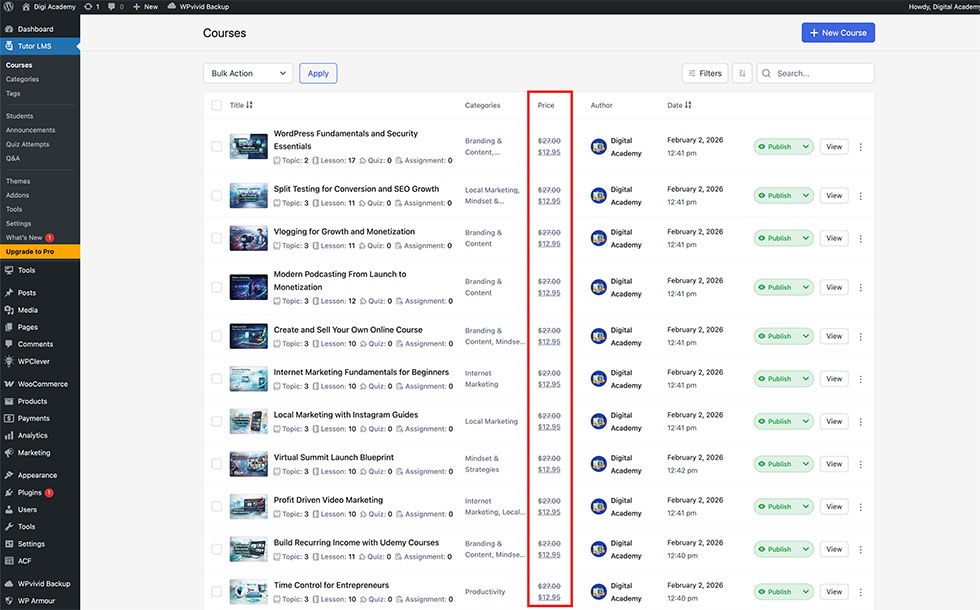
Prices on course pages are controlled by products in WordPress Admin, under Products in the Course Payment category.

Product names for course payment follow this format: Course + Course Name. Example:
Course payment for ‘WordPress Fundamentals and Security Essentials’
is named
‘Course – WordPress Fundamentals and Security Essentials’.
Changing Price for Existing Course
To change the price for an existing course:
– Go to WordPress Admin and open Products.
– Search for the product name using the search box.
– Click Quick Edit on the product.
– Update the sale price and save the changes.


Editing Existing Course Content
In the course builder interface, there are three sections: Basics, Curriculum, and Additional. These sections control all course settings, including the course name, description, category, and other details.
Be careful when editing the sections labeled Pricing Model and Select Product, as these settings control the linked product for the course.

Editing Existing Course Content
To add a new course, go to your WordPress Admin and open Tutor LMS, then select Courses. Click New Course.

At the Basics step, you will need to enter:
– Course name and description
– Categories
– Difficulty level
– Featured image or introduction video

After that, go to the Curriculum step and add topics and lessons. One topic can contain multiple lessons. Each lesson can include text and video content.

To add video to your course lessons, you need to host your videos on a YouTube channel or a Vimeo account, then paste the video link into the lesson.

Do this for all lessons and topics, then go to the Additional tab to add further details such as course length, key takeaways, requirements, and the target audience.

After your course is ready and your changes are saved, go back to WordPress Admin and add a product for course payment.
– Go to Products
– Add a new product.
– Give it a name following this format: Course – [Course Name].
– Select For Tutor in the product meta box.
– Set a price for the product.
– Assign the product to the Course Payment category.
– Save the changes and publish the product.

Choose Paid, then select the product you just created in the product field to link the course and product together.